


From voice notes to call recordings, audio is everywhere in our daily lives. But when you got a voice recording that sounds messy or a call recording filled with unwanted parts, editing those recordings can feel confusing. Don't worry—you can fix it quickly.
In this guide, you'll learn how to edit call recordings and voice clips step by step using an online tool, called FlexClip, plus how to do it right on your Android or iPhone. Check out and learn how to trim, cut, or split your call recordings and any voice clips.
Contents:
Free Editable Templates for Your Video Inspiration




Create Video Faster with FlexClip's Pre-Made Templates →
Start from Scratch Easily with FlexClip’s Online Video Maker →
Part 1 How to Edit Audio Recording Online - Recommended
Whether you want to trim, cut, split, merge or make more edits on your audio recordings, be it a call recording, podcast episode, or a lecture, FlexClip can make it easier in one go.
With FlexClip, you can effortlessly make a custom voice recording by splitting, merging, trimming, adjusting speed in one place. More important, FlexClip offers an AI text-based editor that can convert your call recording, podcast, any audio recording to an editable transcript and you can edit it by editing text to cut and remove unwanted part in a breeze. What's more, FlexClip can help you clean up your audio by reducing background noise, separating vocals and music to make a clear audio file.

FlexClip Video Maker
Why We Recommend FlexClip to Edit Your Voice Recording
Steps to Edit Call Recording or any Voice Clip Using FlexClip

Step 1 Upload Your Audio Recording to FlexClip
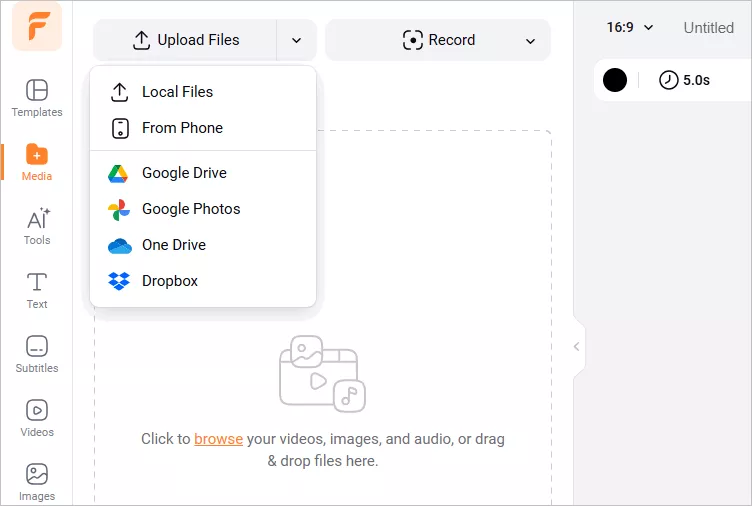
Head to the FlexClip editing page, and go to the Media tab to upload your voice recording from your PC, phone, Google Drive, One Drive or Dropbox, and then add the audio recording to the timeline. Remember to drag the black visual layer to adjust the project length and reveal the whole audio.
How to Edit Audio Recording - Upload
Step 2 Cut and Trim Your Voice Recording
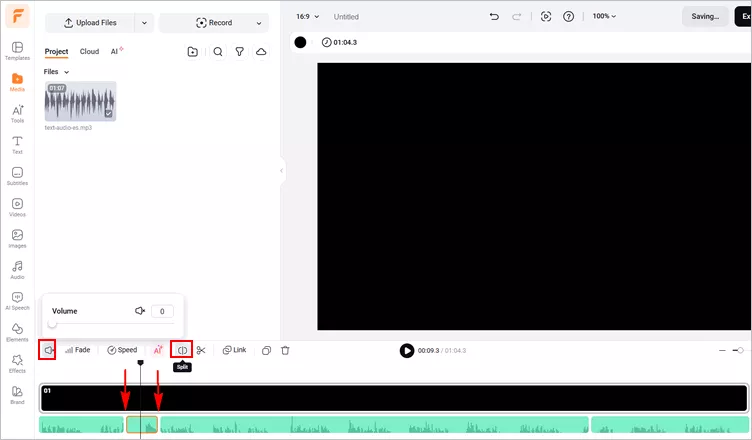
Although you can use FlexClip's easy trim and split tool to trim your voice recording, here we'd like to show you how to use its AI text-based editor to trim and cut your audio recording with AI.
How to Edit Audio Recording - Trim and Split
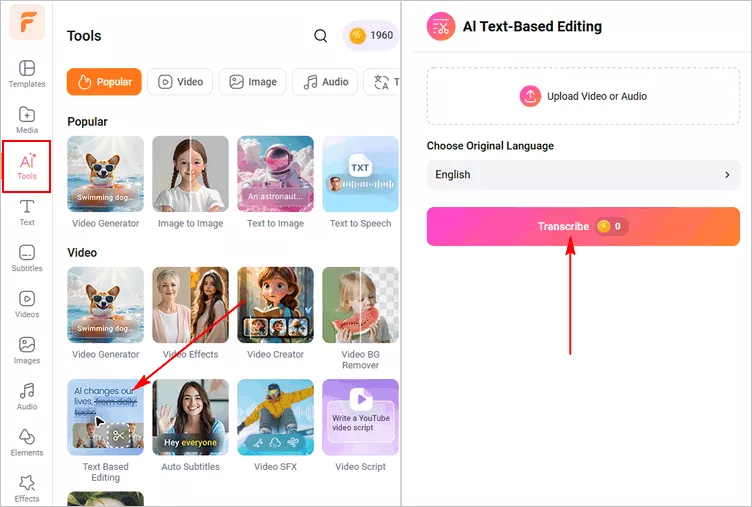
Simply go to the AI Tools tab and select the Text Based Editing tool, then select your audio recording for a quick and smart AI edit, just click the Transcribe button to start transcribing the audio recording into editable text.
How to Edit Audio Recording - Transcribe
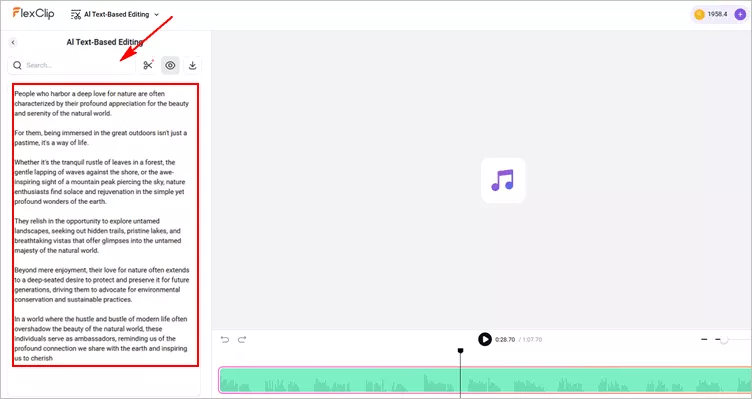
When it finished, you can manually delete any text content to cut your call recording or click the AI Edit button to automatically get highlight moments from your audio file and remove filler words as needed. Once done, export the trimmed audio recording directly or add it to the editor for further editing.
How to Edit Audio Recording - Cut with AI by Editing Text
Step 3 More Edits to Polish Your Audio Recording
After you trimmed your audio recording, you can add the new trimmed one to the editor and make further edits using FlexClip's powerful features.
Here, you can adjust the audio speed, apply fade-in and fade-out effects, and fine-tune the volume. FlexClip also lets you reduce background noise, separate vocals from music, add beep sounds for censorship, and even replace specific parts of your audio with ease. It also includes stock music and audio assets you can use immediately, which is helpful if you don't already have background tracks ready
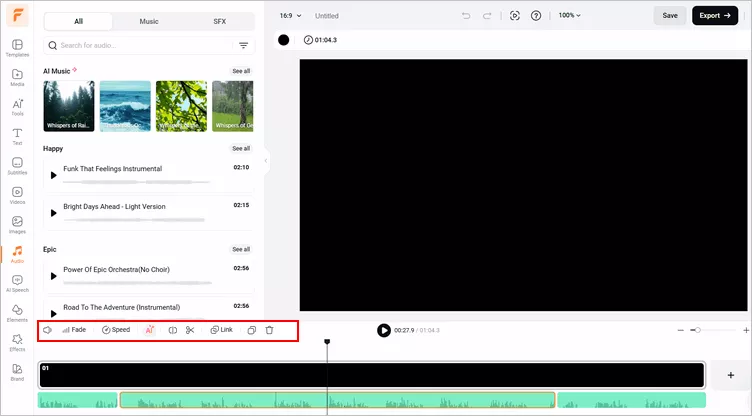
How to Edit Audio Recording - More Edit
Step 4 Preview and Download the Edited Voice Recording
Once you're done, press the play button to preview the result. If you're unsatisfied, simply try FlexClip's audio editing tool to make more edits. Otherwise, click on Export and select Audio option to download your voice recording.
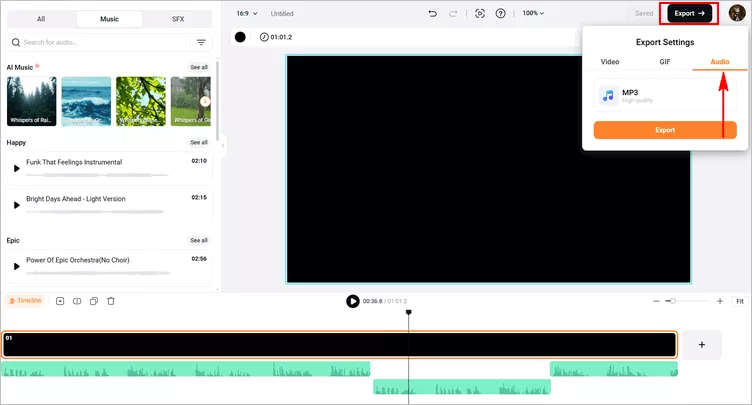
How to Edit Audio Recording - Download
Part 2 How to Edit Audio Recording on iPhone
Are you an iPhone users trying to edit or trim your audio recording on your phone directly? Then you can try the built-in Voice Memos app, a free audio recorder, trimmer, and editor. Voice Memos allows you to adjust the audio speed, skip silence, and crop your audio recordings. It also offers an Enhance Recording option to help you make your audio clear.
Steps to edit audio recording using Voice Memos on iPhone:
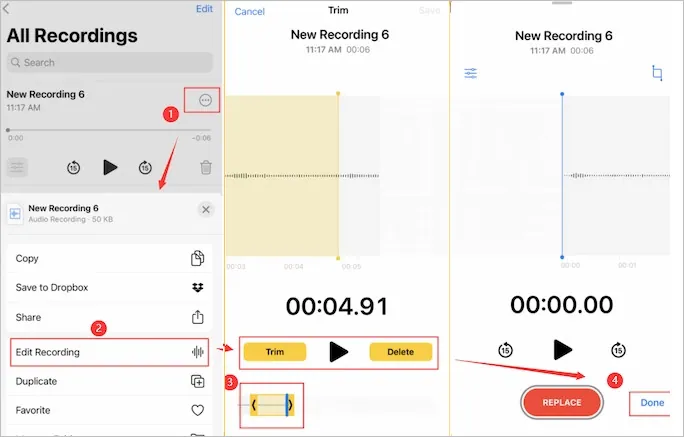
How to Edit Audio Recording on iPhone
Want to make more edits on your audio recording, like speed up or slow down, skip silence or enhance the recording? You can click the balancer-like icon to make it come true in several moves.
Part 3 How to Edit Audio Recording on Android
Now, let’s talk about how to edit and cut audio recording on Android. Well, you’ve known that there is a default voice recorder for you to record any audio. It also offers you the basic audio editing features for you to edit and trim the voice recording.
Below is how you trim an audio recording on your Android phone with the default recording app.
Final Words
This is all the ways to edit and trim your audio recording. Whatever device you use, you can always find a solution in this article. But if you are using a Windows or Mac computer, we sincerely recommend you use FlexClip, as it can record high-quality audio and edit the audio after recording.




FlexClip AI Video Maker
Reach professional-quality videos faster with easy editing tools, templates, and smart AI.
Start Now for Free
Hot & Trending
-

Best Ways to Find Music in YouTube Videos
-

Instagram Story Video Quality Bad After Upload? Fix It!
-

How to Repost Video on TikTok & How to Remove TikTok Repost
-

Improve Video Quality Online: 3 AI Video Quality Enhancers You Can't Miss
-

4K Convert to HD 1080p without Watermark: Best 4k Video Converters
-

Best 8 Free Video Editors - No Download Required
-

Top 13 Birthday Video Makers with Music and Effects Free
-

How to Search Filters on TikTok & Use a Filter You See - TikTok Filter Guide


