Recorded a cool video, but realized later that it needs some trimming in the middle of the video?!!
If you’re trying to remove unwanted parts from the middle of a video—whether it's a mistake, a long pause, or irrelevant content—you're in the right place. In this guide, you'll learn exactly how to cut the middle of a video using FlexClip on desktop, along with simple mobile alternatives for iPhone and Android, so you can edit your videos smoothly anytime, anywhere.
Contents:




Create Video Faster with FlexClip’s Pre-Made Templates →
Start from Scratch Easily with FlexClip’s Online Video Maker →
Can't-miss: Long Video to Short Video without Cutting Using a Free Online Video Shorter >
Part 1 Why Use FlexClip for Cutting Videos in the Middle?
Want a fast, simple, and beginner-friendly way to remove a middle part of a video, FlexClip is one of the best tools you can use. It combines traditional editing tools with AI-powered features, making it pretty easy to cut middle part of a video without complicated software.
FlexClip Video Maker


Here are the key reasons why FlexClip stands out for cutting videos in the middle:
Part 2 How to Cut the Middle of a Video with FlexClip
As you can see, FlexClip is such a powerful tool for cutting a video in the middle, let's check the steps below to learn how to do it using its traditional editing tools and AI-powered features.
Method 1 How to Cut Video in the Middle Using AI Auto Cut
First, we'll introduce FlexClip's AI text-based editor to you. It can automatically convert your video to an editable transcript and you can edit it by editing text to remove unwanted part. It is designed mainly for videos that contain spoken content—where the audio can be converted into text for easy editing.
This method works best for speech-heavy videos rather than visually driven content. So if you're looking to cut a video in the middle—particularly a speech-heavy one—follow the steps below.
Step 1 Access FlexClip's Text-Based Editor
Click the Cut Video in the Middle with AI button above to access FlexClip's text-based editor, then upload the video file you'd like to process. This tool can helps you convert your video to an editable transcript and automatically cut and trim it by delete text to remove any unwanted parts in your video. Pretty easy!
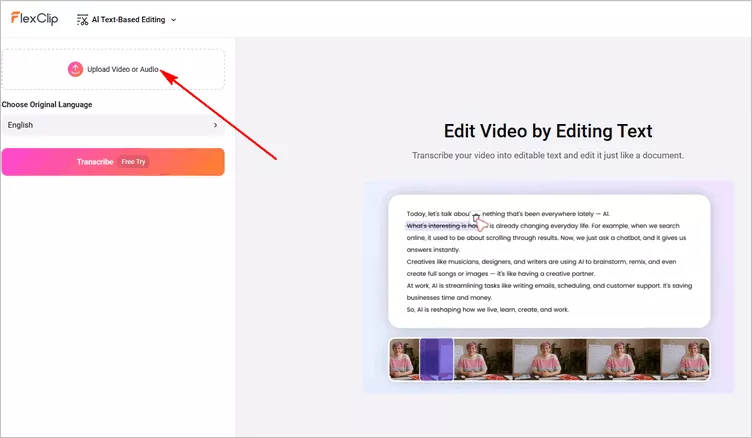
Automatically Cut out the Middle Part of a Video - Access FlexClip's Text-Based Editor
Step 2 Delete the Unwanted Middle Section in the Transcript
Once uploaded, click the Transcribe button to start transcribing your video into editable text. After a few seconds, you'll get a transcript of the video, and you can manually delete any text content to cut and remove any part of your video. Here, you can also try its search feature to find any unwanted information for a quick removal.
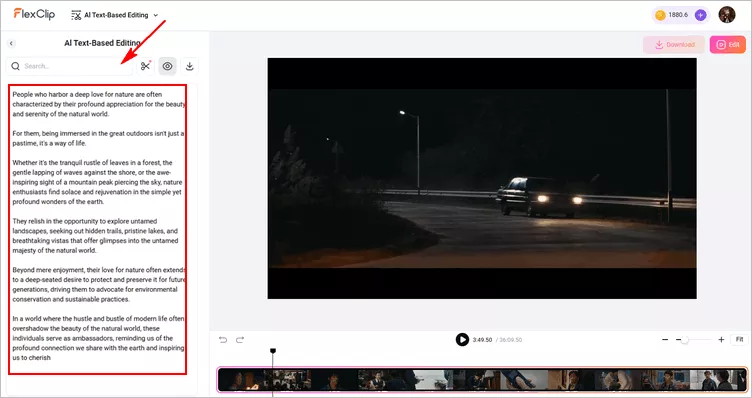
Automatically Cut out the Middle Part of a Video - Transcribe and Cut with AI
Step 3 Preview and Download Your Trimmed Video
Now, you've got all the unwanted parts removed from your video, click the play button to preview the censored audio, checking if the final result looks OK. Finally, click the Export button to download the trimmed video directly.
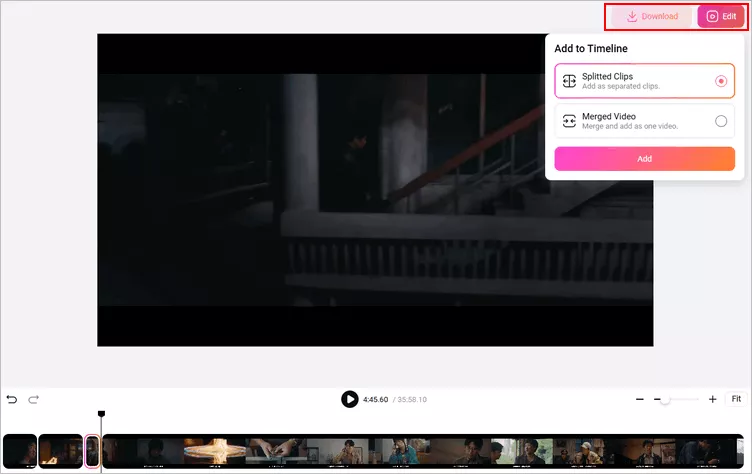
Automatically Cut out the Middle Part of a Video - Preview and Download
Need more precise trim or edits to prefect your video, FlexClip offers a built-in editor for you to manually edit your video flexibly. Just click the Edit button then select the Splitted Clips option to take your video clips into the editor and make edits freely.
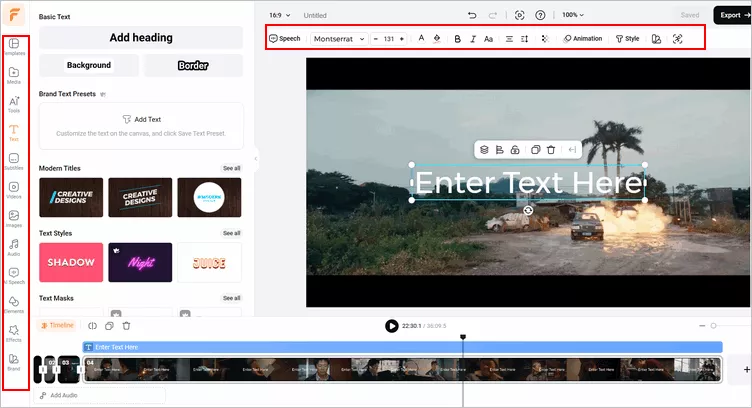
Automatically Cut out the Middle Part of a Video - Edit Video
Method 2 How to Cut Video in the Middle With Manual Deletion
Since the AI solution only works with spoken-content videos, what about cutting the middle of visually driven footage? In that case, simply switch to FlexClip manual editing tools to get the job done with precision and control.
The manual method gives you full control over your video timeline. Now, let's check the steps below to learn how to trim a video from the middle using FlexClip's editing tools.
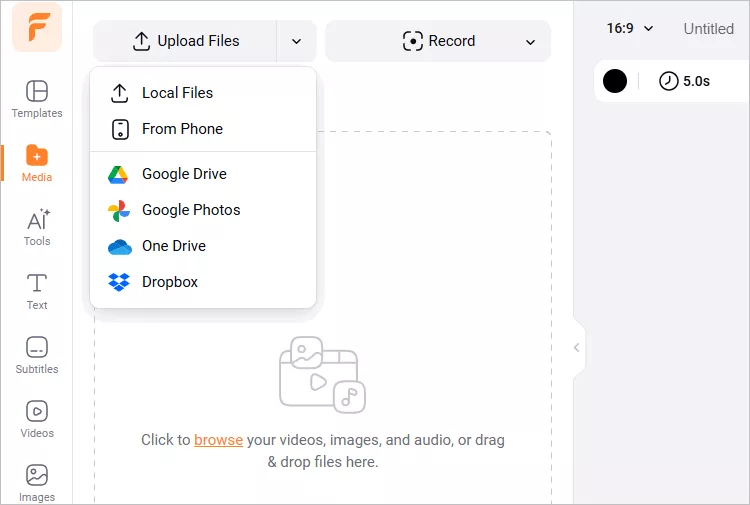
Cut Video in Middle Online with FlexClip - Upload
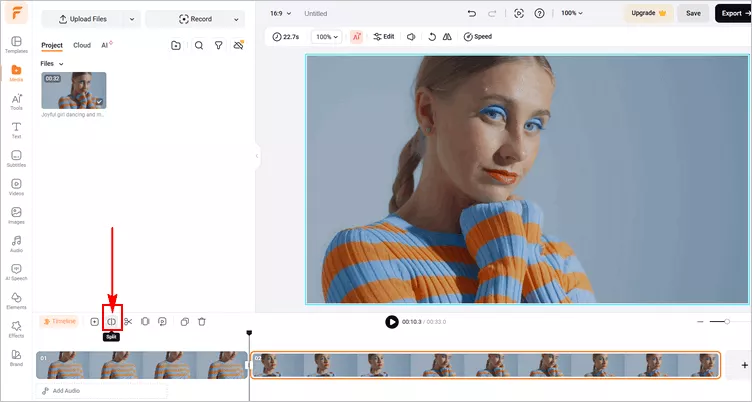
Cut Video in Middle Online with FlexClip - Split
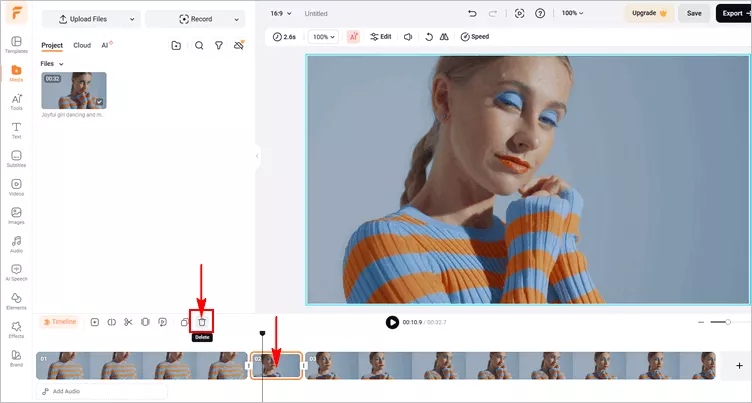
Cut Video in Middle Online with FlexClip - Delete
Alternatively, you can simply split the video into two parts and select the first clip to drag the slider to cut out the beginning of the part you want to trim out; then go to the second clip to rim the end of the part you want to cut from the video.
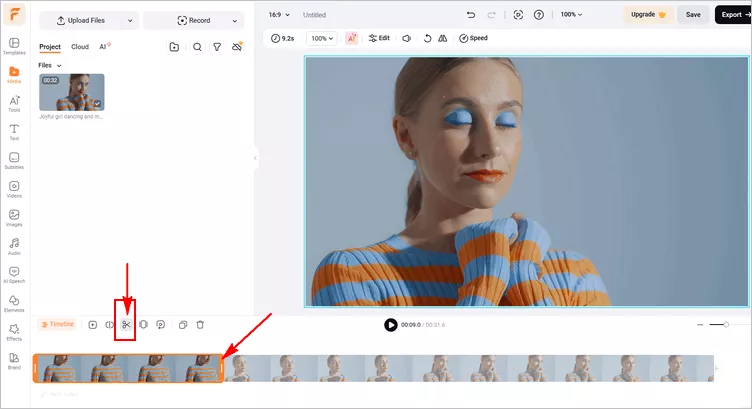
Cut Video in Middle Online with FlexClip - Trim
And voila! You've successfully cut the middle part of the video. Now, you can preview your video and review the edits before finalizing it. Click on the preview button to inspect the video, and if you find the cut to be satisfactory, you can proceed to export it. You can also seamlessly share it via a link, or post to social media and beyond.
Pro Tip: At FlexClip, you can try its powerful features and stunning effect to make more edits and perfect your video. You can add text, transitions, overlays, filters, as well as plenty of animated elements, like subscribe buttons, emoji stickers, speech bubbles, etc., to enhance your video. Have no ideas on how to edit your video? Just check out FlexClip's professionally designed templates for some inspiration.


Part 3 How to Cut the Middle of a Video on iPhone/Android
FlexClip is a desktop-based video editor and is not available on mobile devices. But if you want to cut a video in the middle on your iPhone or Android devices, don't worry—you still have easy solutions.
How to Cut the Middle of a Video on iPhone Using iMovie
For iPhone(or Mac) users, iMovie is the easiest way to cut the middle of a video. Here's how to trim the middle of a video on an iPhone using iMovie.
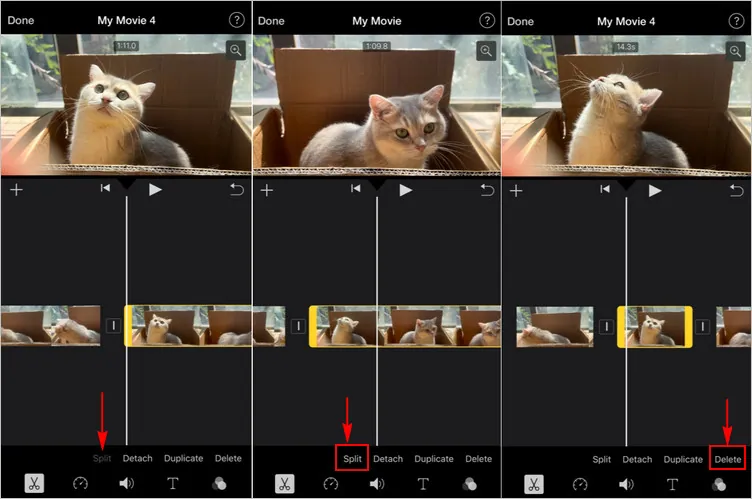
Cut the Middle of a Video on iPhone Using iMovie
How to Cut the Middle of a Video on Android with Kinemaster
An Android user? You may need a third-party app to cut the middle part of a video on your device. Kinemaster is among the most familiar apps for editing your videos on Android. With this app, you can either shorten the video by moving its borders or cut the middle parts by simply splitting it. Here are the steps to learn how to trim the middle part of a video in Kinemaster:
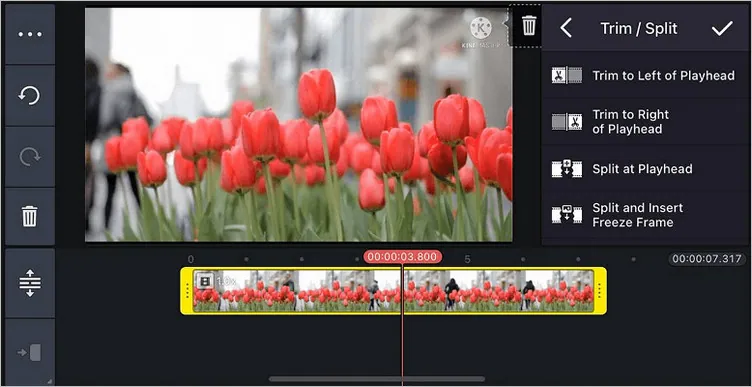
Cut the Middle of a Video on Android with Kinemaster
Final Words
That's it! Whether you’re using desktop tools like FlexClip or mobile apps like iMovie and KineMaster, cutting the middle of a video is simple once you know the right method. Choose FlexClip for powerful online editing, or mobile apps for quick edits on the go—either way, you can create clean, professional videos with ease.Happy editing!




FlexClip AI Video Maker
Reach professional-quality videos faster with easy editing tools, templates, and smart AI.
Start Now for Free
Hot & Trending
-

Best Ways to Find Music in YouTube Videos
-

Instagram Story Video Quality Bad After Upload? Fix It!
-

How to Repost Video on TikTok & How to Remove TikTok Repost
-

Improve Video Quality Online: 3 AI Video Quality Enhancers You Can't Miss
-

4K Convert to HD 1080p without Watermark: Best 4k Video Converters
-

Best 8 Free Video Editors - No Download Required
-

Top 13 Birthday Video Makers with Music and Effects Free
-

How to Search Filters on TikTok & Use a Filter You See - TikTok Filter Guide