No Filming. No Actors. No Editing Skills. Turn One Product Image into Winning Ads Now.

Edit Videos Quickly on Mac: Best Ways for Beginners in 2026

Last Updated: 2026. 04. 24

What are some easy ways to edit a video on a Macbook Pro?

What are some good but extremely user friendly video editing apps for Mac?

Whether you're posting on YouTube, TikTok, or Instagram, video quality matters. The difference between average and eye-catching content often comes down to editing. So if you're trying to figure out how to edit videos on Mac, you've come to the right place!

In this article, we'll show you how to edit videos easily using different tools on Mac. We'll also discuss some of the features of each of these applications so you can make a decision on which one works best for you. Let's dive in!

Contents:

Free Editable Video Templates You Might Love

Before we dive into our topic, we'd like to share some beautiful video templates for your appreciation and inspiration!

Camera Travel Vlog Memories Film Movie Family Vacation Slideshow
Preview
Camera Travel Vlog Memories Film Movie Family Vacation Slideshow
Use This Template
Old Retro Film Family Friend Travel Memories Photo Collage Slideshow
Preview
Old Retro Film Family Friend Travel Memories Photo Collage Slideshow
Use This Template

Prefer a vertical one for TikTok or Instagram Reels? We've got all covered!

Valentines Day Costume Petals Transition
Preview
Valentines Day Costume Petals Transition
Use This Template
Minimalist Film Wedding Save The Date Invite Photo Collage Dump Tiktok Story
Preview
Minimalist Film Wedding Save The Date Invite Photo Collage Dump Tiktok Story
Use This Template
3d Valentine Couple Polaroid Tiktok
Preview
3d Valentine Couple Polaroid Tiktok
Use This Template

Part 1 How to Edit Videos on Mac: Which Software Should You Use?

Finding the right editing tool is the first step toward editing and making great videos on a Macbook. Check out our recommendations below to explore some of the video editing options to get started.

  • QuickTime Player: Ideal for quick edits, QuickTime lets you trim or split clips with ease. While its functionality is limited, it's a convenient option for simple tasks without installing extra software.
  • iMovie: Pre-installed on Macs, iPads, and iPhones, iMovie is beginner-friendly and ideal for simple projects. It offers essential editing tools like trimming, transitions, and basic effects.
  • FlexClip Video Editor: This online editor features a clean interface along with motion graphics, special effects, and built-in captioning tools. It also offers AI-powered features to streamline the editing process.
  • Final Cut Pro: Apple's professional editing software, built for performance on macOS. With a one-time purchase, it provides advanced, pro-level features without subscription fees—ideal for users ready to take their editing skills to the next level.
  • Adobe Premiere Pro: An industry-standard editing tool designed for professional video production. It offers powerful, advanced features but comes with a higher price and a steeper learning curve, making it best suited for experienced users or those aiming to go pro.
  • If you need pro-level editing power, Final Cut Pro and Adobe Premiere Pro are excellent choices. For beginners, iMovie or QuickTime Player are easy starting points. But if you want the perfect balance of simplicity and advanced features, FlexClip is highly recommended.

    Part2 How to Edit a Video on a Mac: Step-by-Step Guide

    Editing videos on a Mac is easier than ever, thanks to built-in tools and powerful editing software. Whether you're just starting out or aiming for high-end production quality, we'll show you the detailed steps below to edit videos on a Mac using different tools.

    Start with Built-in Mac Tool - Edit Videos on Mac with iMovie

    The simplest way to begin editing is by using Apple's built-in apps. QuickTime Player allows you to perform quick edits like trimming or splitting clips without installing anything extra. It's fast, lightweight, and perfect for small adjustments. For a more structured editing experience, iMovie is ideal for beginners. It offers an easy interface with essential tools like transitions, titles, and basic effects, making it a great first step into video editing.

    Here, we'll show you how to edit a video on Mac using iMove.
    Step 1
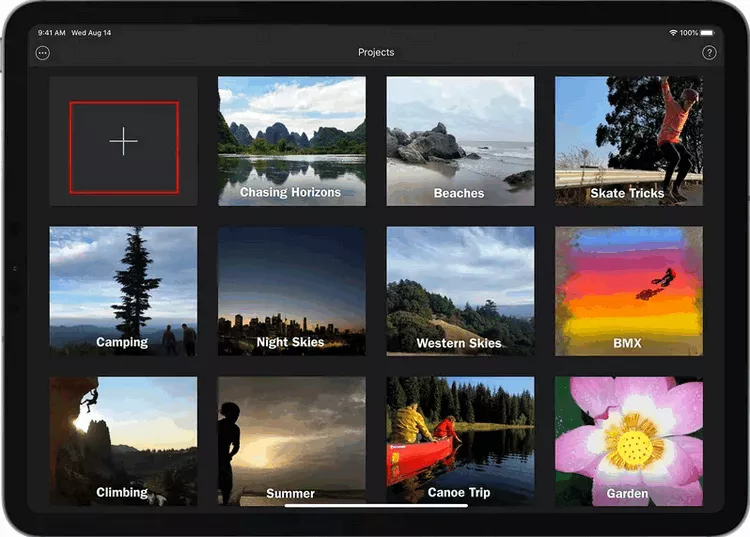
    Launch the iMovie application on your Mac, and click the + button > Movie.
    How to Edit Videos on Your Mac with iMovie - Step 1
    How to Edit Videos on Your Mac with iMovie - Step 1

    Step 2
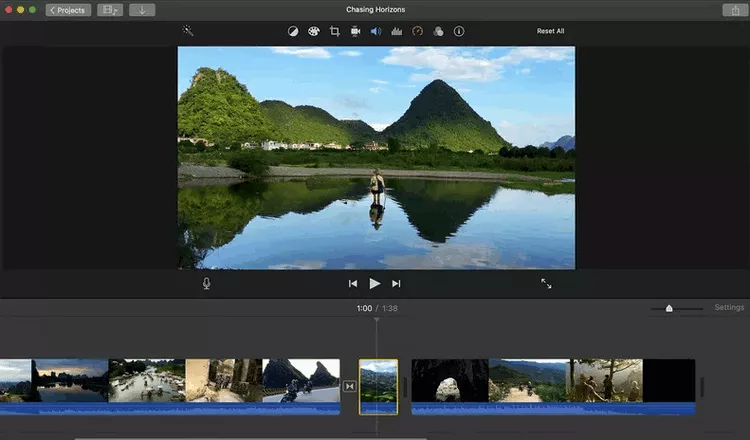
    Import video clips from your Mac to the iMovie browser, then drag your clips from the iMovie browser to the timeline of your project and start your editing.
    Step 3
    Now, you can start editing your video by changing the sequence of clips and trimming or splitting these clips according to your needs.
    How to Edit Videos on Your Mac with iMovie - Step 3
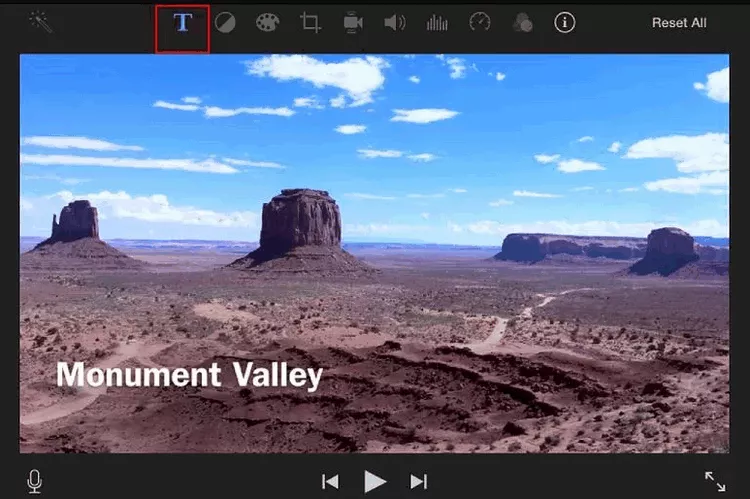
    How to Edit Videos on Your Mac with iMovie - Step 3

    Step 4
    Now, it's time to add text and titles to iMovie on Mac. Click on the "Title" option at the top of the browser, select the text style you like, and then drag it to the timeline, then write down your information.
    How to Edit Videos on Your Mac with iMovie - Step 4
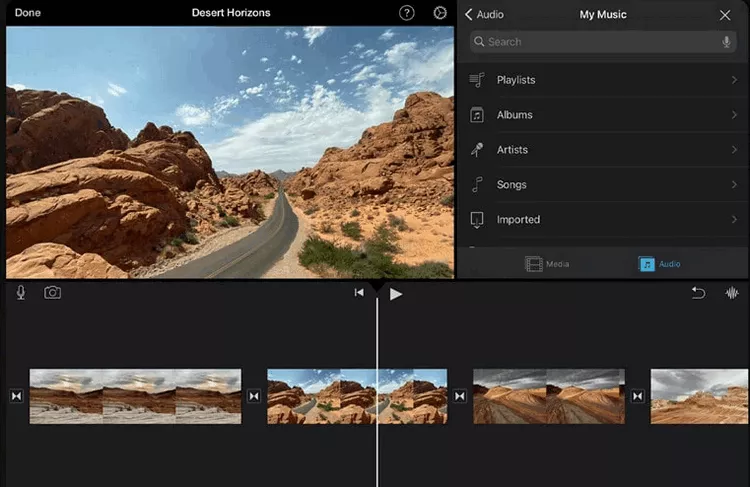
    How to Edit Videos on Your Mac with iMovie - Step 4

    Step 5
    Let's move on for adding music to the video in iMovie. Go to the Audio tab, which is located above the browser, select Music from the sidebar. Then browse to find the audio you wish to add to the project.
    How to Edit Videos on Your Mac with iMovie - Step 5
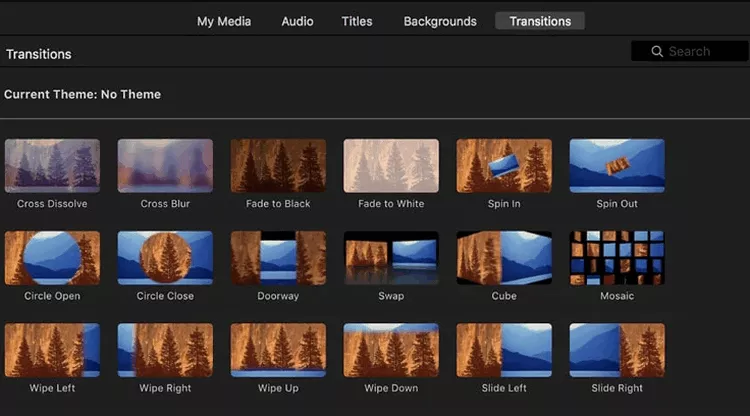
    How to Edit Videos on Your Mac with iMovie - Step 5

    Step 6
    After that, you can add some video effects, such as filters, animated transitions, flash and freeze frame, etc., to level up your video. for more detailed steps, check out our post: How to Edit with iMovie Like a Pro
    How to Edit Videos on Your Mac with iMovie - Step 6

    How to Edit Videos on Your Mac with iMovie - Step 6

    Step 7
    When you finished the edits, you can directly preview your iMovie project and share it to popular social media platforms, such as YouTube, Facebook, and Vimeo.

    Move to More Flexible Online Editing - Edit Videos on Mac with FlexClip

    If you want more features without dealing with complex software, FlexClip is a strong option. It runs directly in your browser and provides tools like motion graphics, captions, templates, and even AI-assisted editing. It strikes a great balance between simplicity and creative control, making it a popular choice for content creators.

    Below are step-by-step instructions using FlexClip to edit a video on Mac.

    Get Started Now View Templates
    Step 1
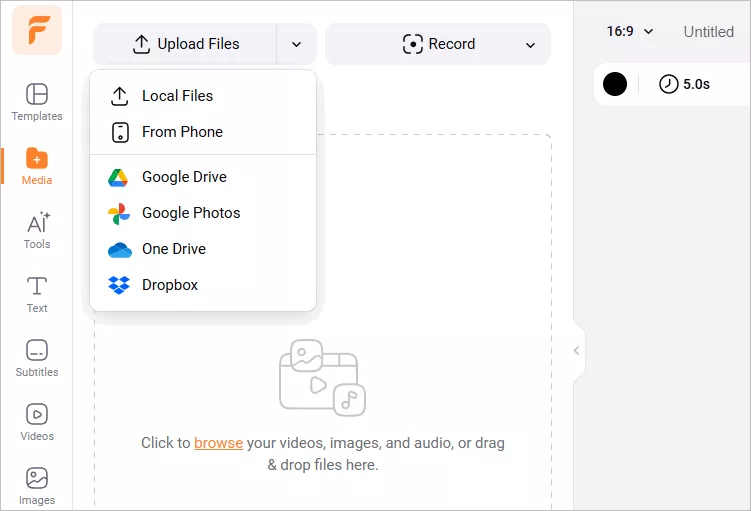
    Upload your video to FlexClip from your Mac directly, or try to add some footage from Google Drive, One Drive, Dropbox, or Google Photos, etc. Then Click the plus sign to add your footage to the intuitive and magnetic timeline for edits.
    How to Edit Videos on Your Mac with FlexClip - Upload
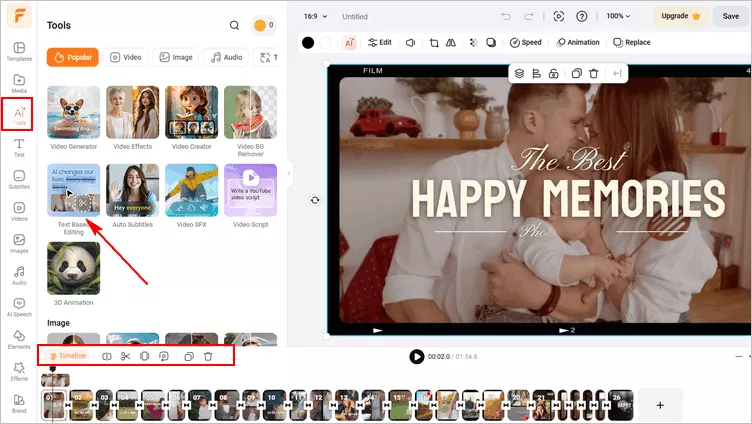
    How to Edit Videos on Your Mac with FlexClip - Upload

    Step 2
    Once added, you can cut and trim your video to remove any unwanted parts freely - manually cut the clips with FlexClip's easy trimmer or try its AI text-based editing tool to make an auto cut.
    How to Edit Videos on Your Mac with FlexClip - Cut and Trim
    How to Edit Videos on Your Mac with FlexClip - Cut and Trim

    Step 3
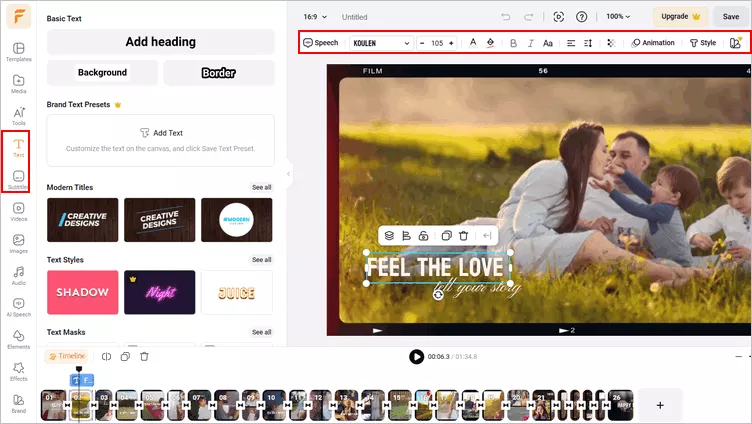
    Now, you can go to the Text tab, select from hundreds of text styles like the lower thirds, social media, quotes, speech bubbles, callout titles, etc., and replace them with your texts. All the fonts, colors and styles, and motions are fully customizable. Feel free to try FlexClip's auto subtitle generator to automatically add open captions to your video with the click of a button.
    How to Edit Videos on Your Mac with FlexClip - Text

    How to Edit Videos on Your Mac with FlxClip - Text
    Step 4
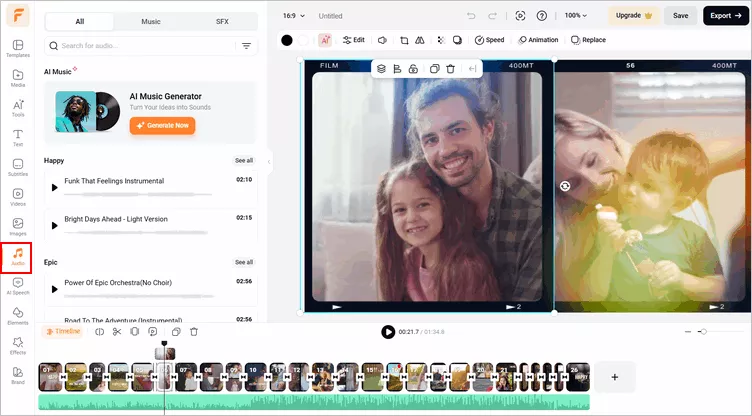
    Never forget to add some sound effects and background music to go along with your video to make the overall video more engaging and interesting for your audience. Moreover, you can also do the voice-over to clarify your points, plus, AI text-to-speech tool is also available for you to create AI voice narration.
    How to Edit Videos on Your Mac with FlexClip - Audio
    How to Edit Videos on Your Mac with FlexClip - Audio

    Step 5
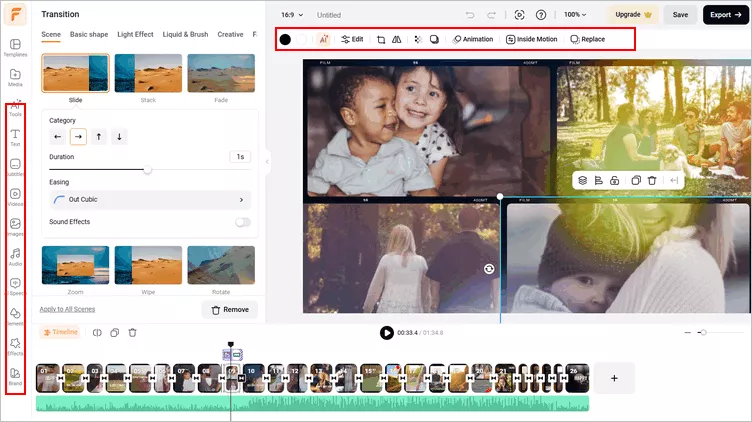
    After that, you can try FlexClip's more powerful tools and effects to take your video into next level. Add transitions, overlays, filters, as well as plenty of animated elements, like subscribe buttons, emoji stickers, etc. You can also add a logo or watermark for copyright protection, change video speed and add intro or outro video templates, and aesthetic illustrations to add styles and vibes to your video.
    How to Edit Videos on Your Mac with iMovie - More Edits

    How to Edit Videos on Your Mac with iMovie - More Edits

    Step 6
    Done with the editing. Click the Export button to directly download it as a 1080P MP4 to your hard drive or directly share it to YouTube or TikTok. A clickable link and an embed code are also available for your blog, newsletter, or other repurposing.

    Go Pro with Advanced Editing Tools - Edit Videos on Mac with Final Cut Pro

    For users who want full creative control and professional-grade results, there are industry-standard options available. Final Cut Pro is among the best-know professional video editors for Mac. It is optimized for macOS and integrates seamlessly with other Apple products, offering strong performance, speed, efficiency, and a convenient one-time purchase model.

    Ready to start editing a video using Final Cut Pro on your Macbook like a pro? Well, just check the tutorial below.

    To make things easier and more practical, here we'll focus on a video-based walkthrough so you can follow along and master the process quickly. Check the complete Final Cut Pro tutorial for Mac! Learn how to use Final Cut Pro to edit videos on a Macbook, so you can get up to speed in this awesome video editing software, fast.

    Final Cut Pro Tutorial For Beginners

    Final Words

    That’s all for how to edit videos on Mac with the help of different editing software. Which one do you prefer? Think this post is helpful? We'd appreciate it if you could share this post with others.

    Group 11
    Make a free video online
    Create Your First Video With FlexClip Now
    Get Started - Free